
The employee receives a daily digest listing their quarantined messages
The email sent at 7:00 PM UTC (2:00 PM EST / 11:00 AM PST) listing their quarantined messages
The request is handled based on your configured policy
AI-autonomous review, SOC approval, or self-release
To allow Ocean to handle release requests for emails quarantined by Microsoft 365, enable the Microsoft 365 quarantine release toggle in the same settings page. See Microsoft - Quarantine Release AI Response for more details.
How to Set It Up
Navigate to Settings → AI Response → Quarantine release in the Ocean portal.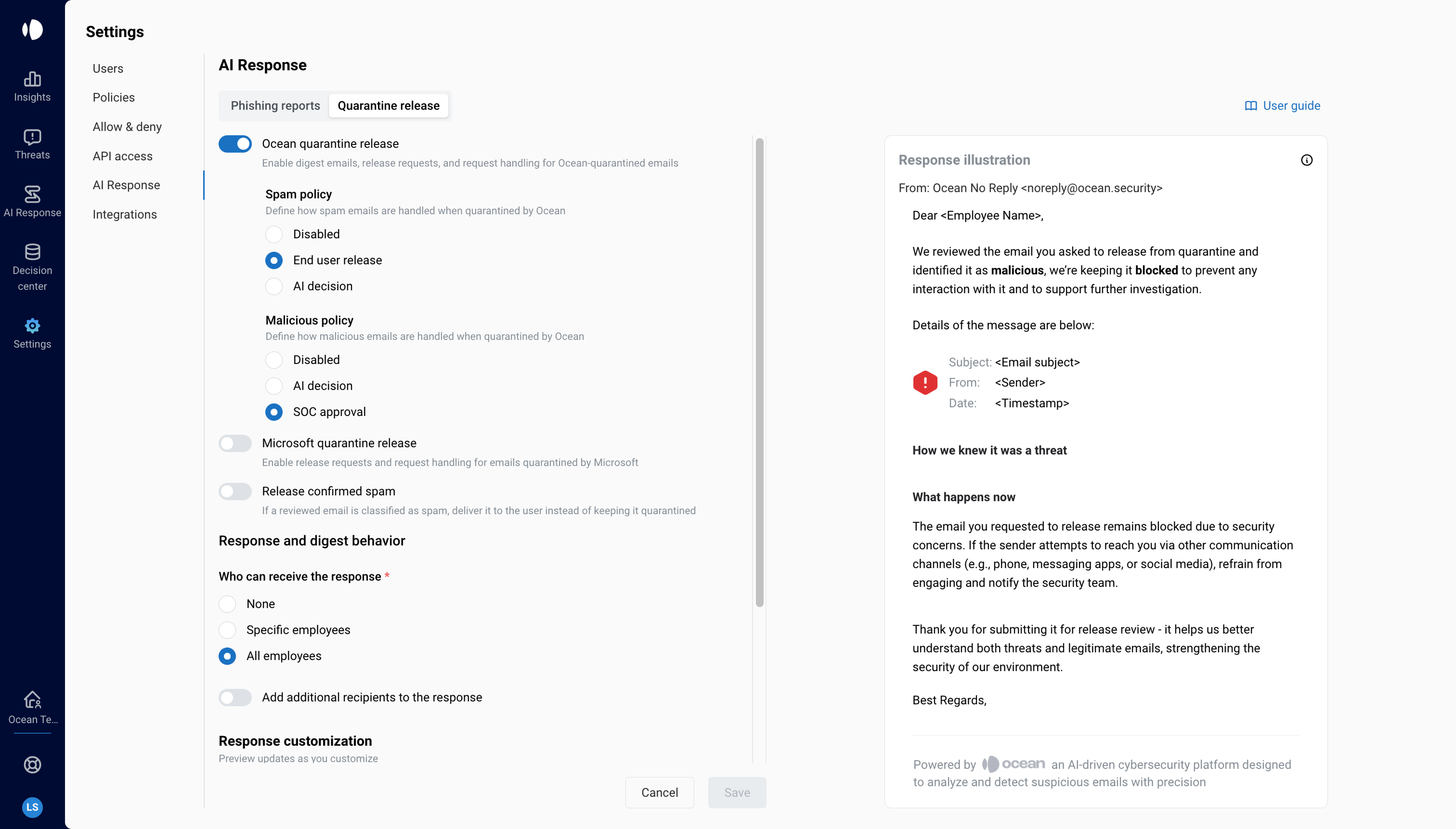
Step 1: Enable Ocean Quarantine Release
Toggle Ocean quarantine release to enable digest emails, release requests, and request handling for Ocean-quarantined emails. This is required for the digest and release request flow to function.Step 2: Configure Spam Policy
Under Spam policy, choose how release requests are handled for emails with a Spam verdict:| Option | What happens |
|---|---|
| Disabled | Spam emails are not shown in the digest. Employees cannot request release. |
| End user release | Employees can release spam emails directly from the digest — no review required. |
| AI decision | Ocean Quarantine AI Agent autonomously reviews the request using Ocean’s full investigation infrastructure and decides whether to release. The employee receives an explanation either way. |
Step 3: Configure Malicious Policy
Under Malicious policy, choose how release requests are handled for emails with a Malicious verdict:| Option | What happens |
|---|---|
| Disabled | Malicious emails are not shown in the digest. Employees cannot request release. |
| AI decision | Ocean Quarantine AI Agent autonomously reviews the request using Ocean’s full investigation infrastructure and decides whether to release. The employee receives an explanation either way. |
| SOC approval | Ocean Quarantine AI Agent reviews the request and provides a recommendation. Your SOC team makes the final call to approve or deny. The employee is notified of the outcome. |
In all AI decision and SOC approval flows, if an email is not released, the employee automatically receives a notification explaining why — including the AI’s reasoning about the threat.
Step 4: Configure Release Scope
Under Who can receive the response, choose which employees receive digest emails and can request releases:| Option | Who gets the digest |
|---|---|
| None | No digest emails are sent. Release requests are disabled for all employees. |
| Specific employees | Only designated users or groups receive digest emails and can request releases. |
| All employees | All mailbox users receive digest emails and can request releases. |
Step 5: Configure Sender Settings
Customize the sender identity used for digest emails and notification responses:- Sender name — Display name shown in the From field (e.g., “Ocean Security”)
- Sender mailbox — The email address used to send digest emails. Using a custom domain requires DNS setup.
Step 6: Save
Click Save to apply your configuration. Changes take effect immediately for new quarantine events. Digest emails will begin sending on the next scheduled cycle.What Happens After a Request Is Submitted
The outcome depends on the policy configured for that verdict type:| Configured Policy | What happens |
|---|---|
| End user release | The email is immediately restored to the employee’s inbox. |
| AI decision | Ocean Quarantine AI Agent autonomously reviews the request using Ocean’s full investigation infrastructure and decides whether to release. The employee receives an explanation either way. |
| SOC approval | A release request is created in the Ocean portal for your security team to review. The email remains quarantined until a reviewer acts on it. The employee is notified of the outcome. |
The Daily Digest Email
Employees in the configured release scope receive a daily email summarizing all their quarantined messages, organized by verdict type (Spam and Malicious).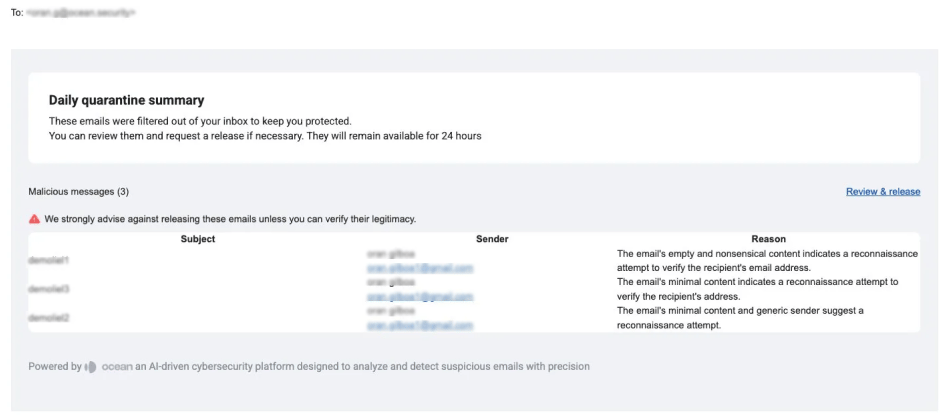
- Subject of the quarantined email
- Sender name and email address
- Reason why it was quarantined
The Quarantine Portal (End User View)
When an employee clicks the link in their digest, they are taken to a quarantine portal page showing their quarantined emails for that day.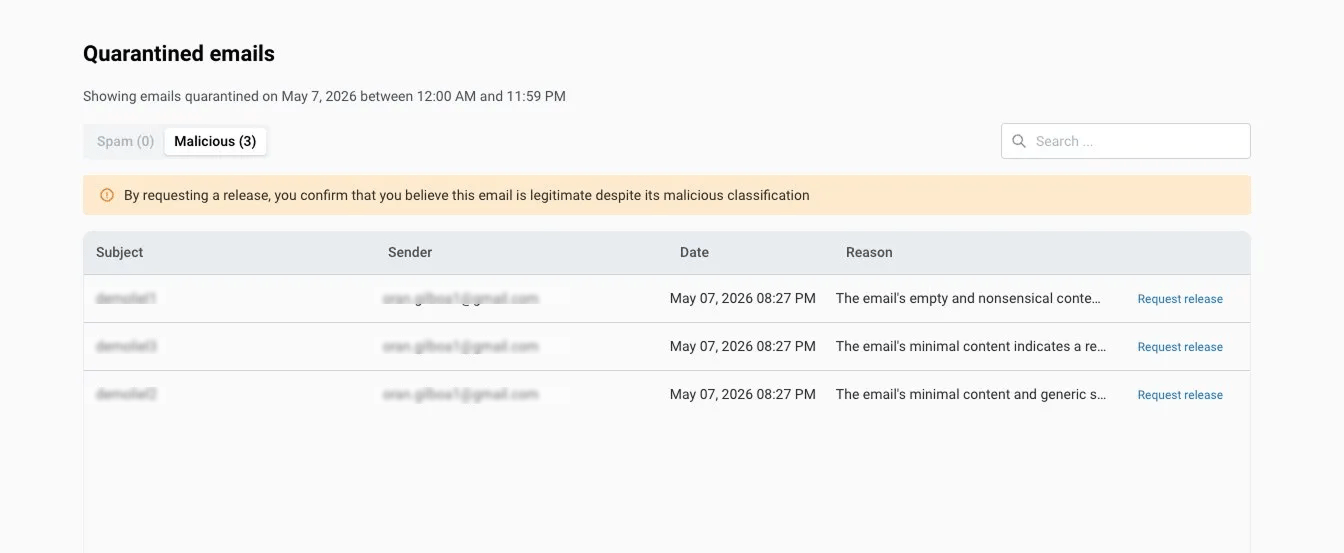
Release links are cryptographically signed and time-limited. They cannot be forwarded or reused.