
Overview
When Ocean blocks an email it identifies as malicious or spam, you may need to release it if the email turns out to be legitimate. Ocean provides two ways to release blocked emails:- Threat View
- Decision Center
Releasing an email marks it as safe and restores it to the recipient’s inbox. This action is logged for audit purposes.
Method 1: Release from Threat View
Use the Threat View when you have a single threat that needs to be investigated and released. The Threat View provides all the details you need to determine whether a threat is a false positive.When to Use
- A user reported a blocked email as a false positive
- Your investigation of a threat reveals it’s legitimate
- You need full context (sender details, email content, attachments, links) to make a decision
Steps
Select the Threat
Find and click on the threat you want to release. The threat details panel will open on the right side.
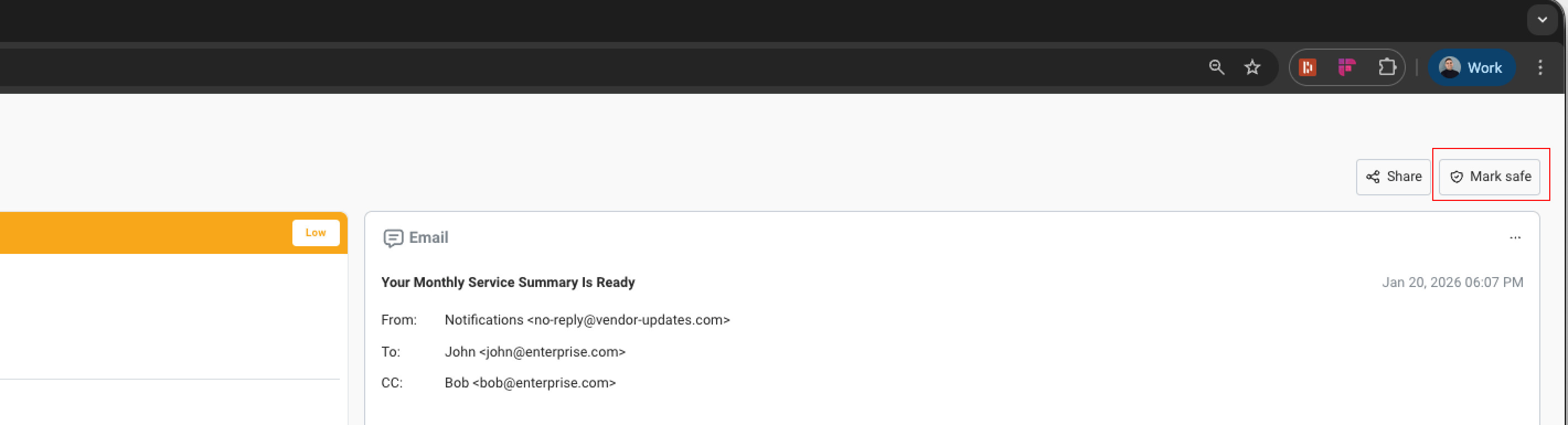
Confirm the Action
A confirmation dialog will appear. Click Mark as Safe to release the email and mark it as safe.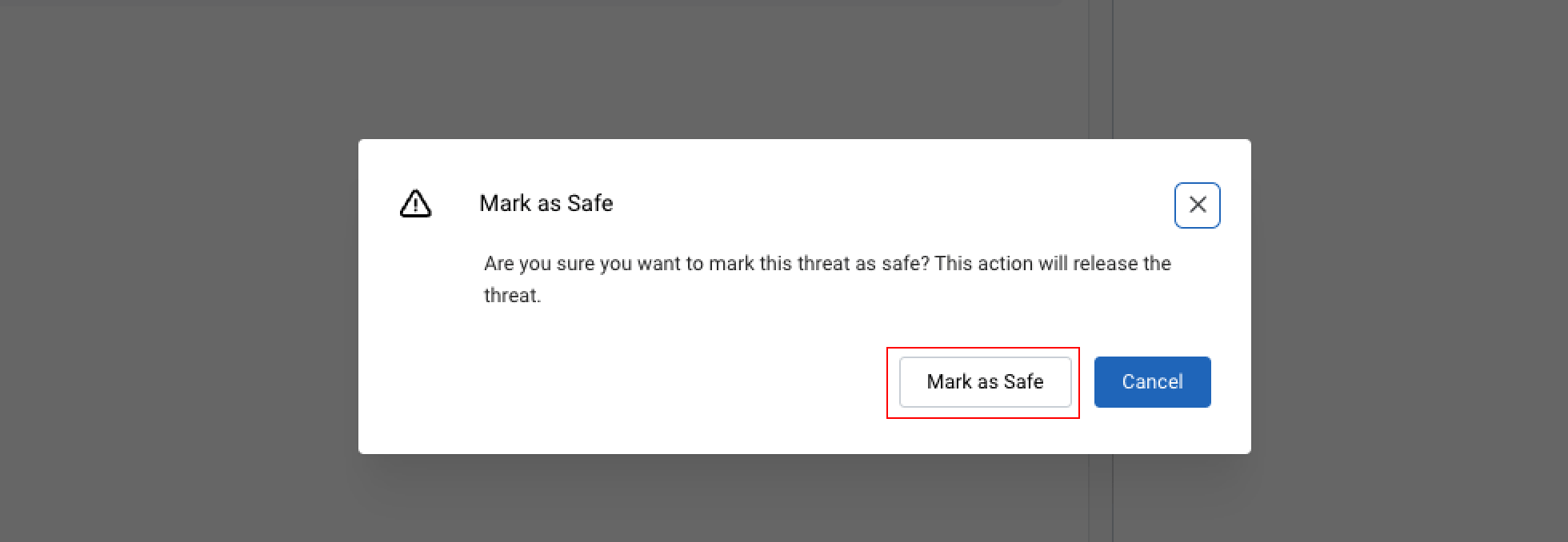
What Happens
When you release a threat from the Threat View:- All emails associated with the threat are restored to recipients’ inboxes
- The threat is marked as Safe in the system
- Your action is recorded with your name and timestamp
- Future similar emails may benefit from this feedback
Method 2: Change Verdict in Decision Center
Use the Decision Center for broader email management capabilities beyond just releasing emails. It allows you to search across all emails, handle multiple emails at once, and change verdicts to Safe, Spam, or Malicious.When to Use
- You need to search for specific emails across your organization
- You want to change verdicts for multiple emails in a batch operation
- You need to change an email’s verdict to something other than Safe (e.g., Spam or Malicious)
- You want to re-classify emails that were previously marked incorrectly
Steps
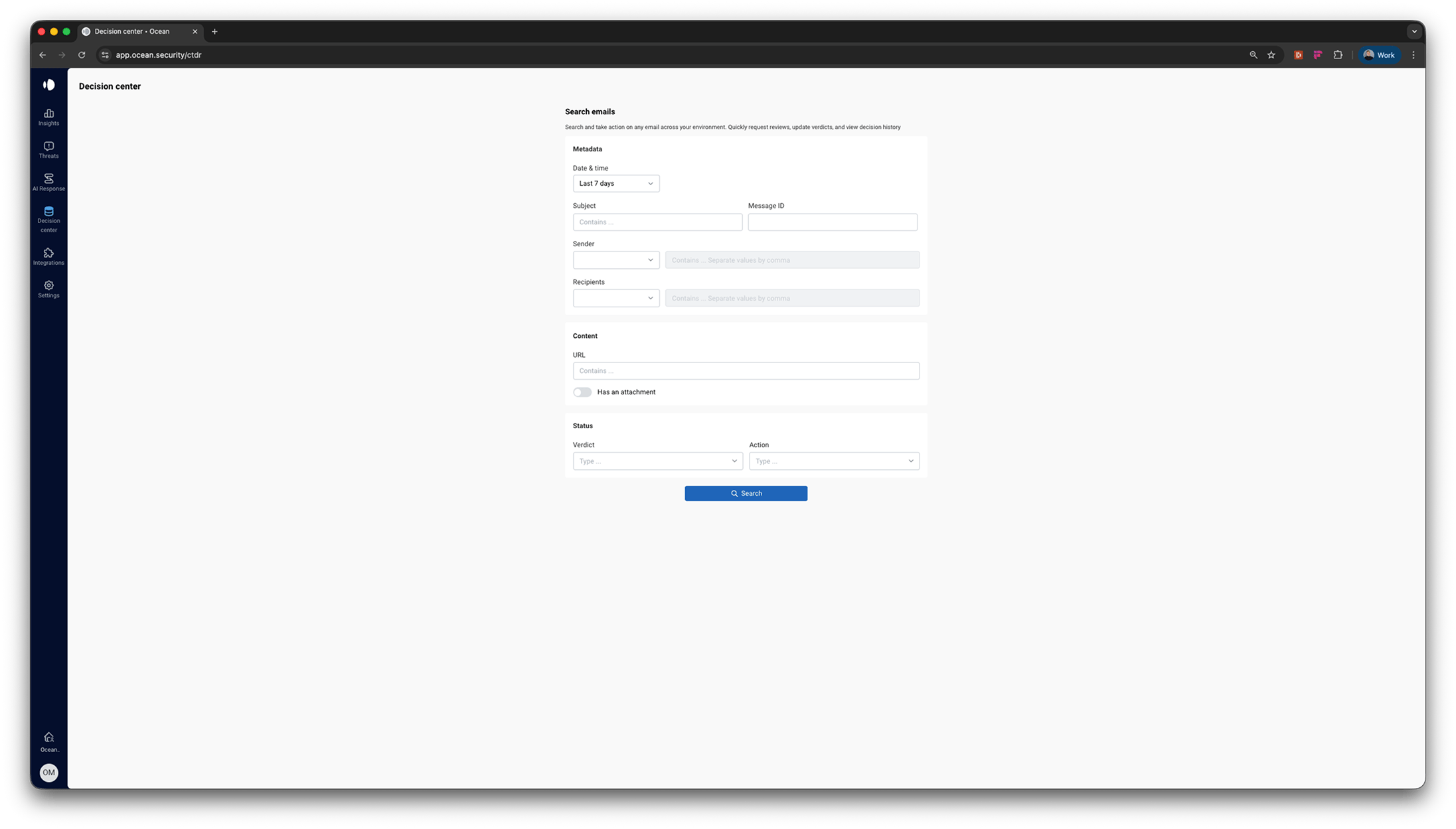
Search for Emails
Use the search filters to find the email(s) you want to release. You can filter by:
- Date range
- Sender
- Recipient
- Subject
- Current verdict
- URLs/Files
Select Email(s)
Click on an email to view its details, or select multiple emails using the checkboxes for batch actions.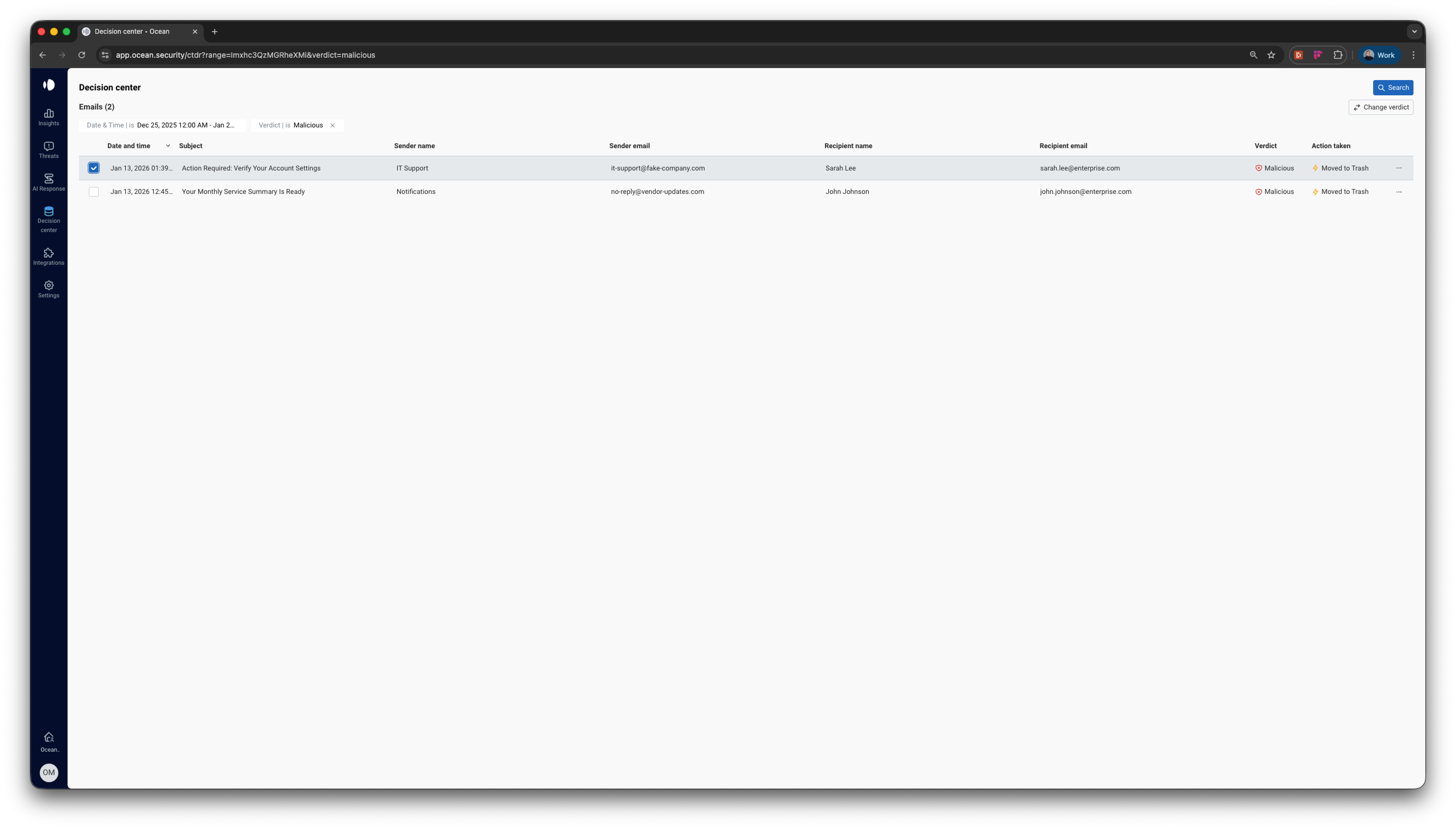
Click Change Verdict
Click the Change Verdict button. This button appears in: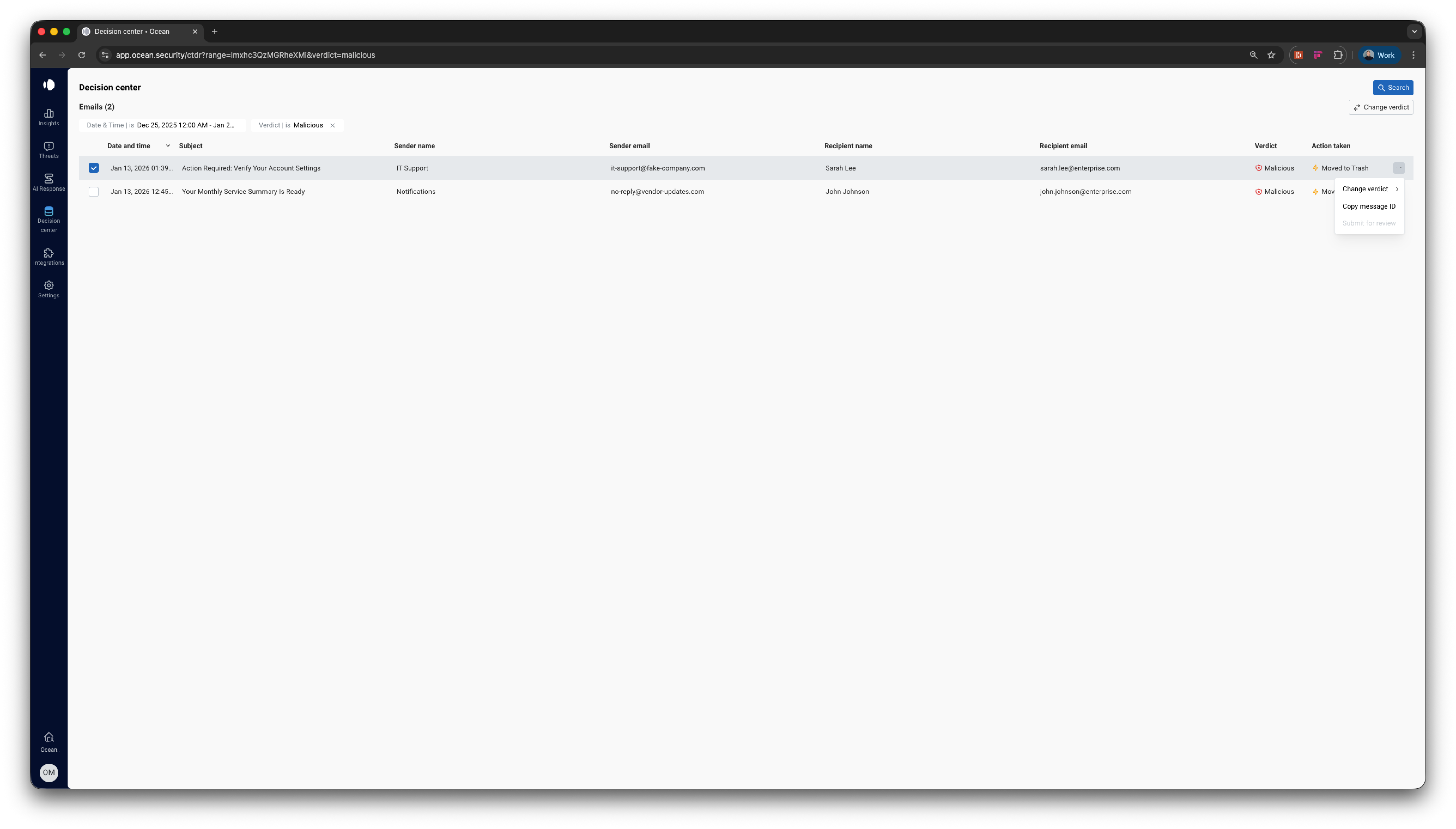
- The email details drawer (for single emails)
- The action bar (for batch operations)
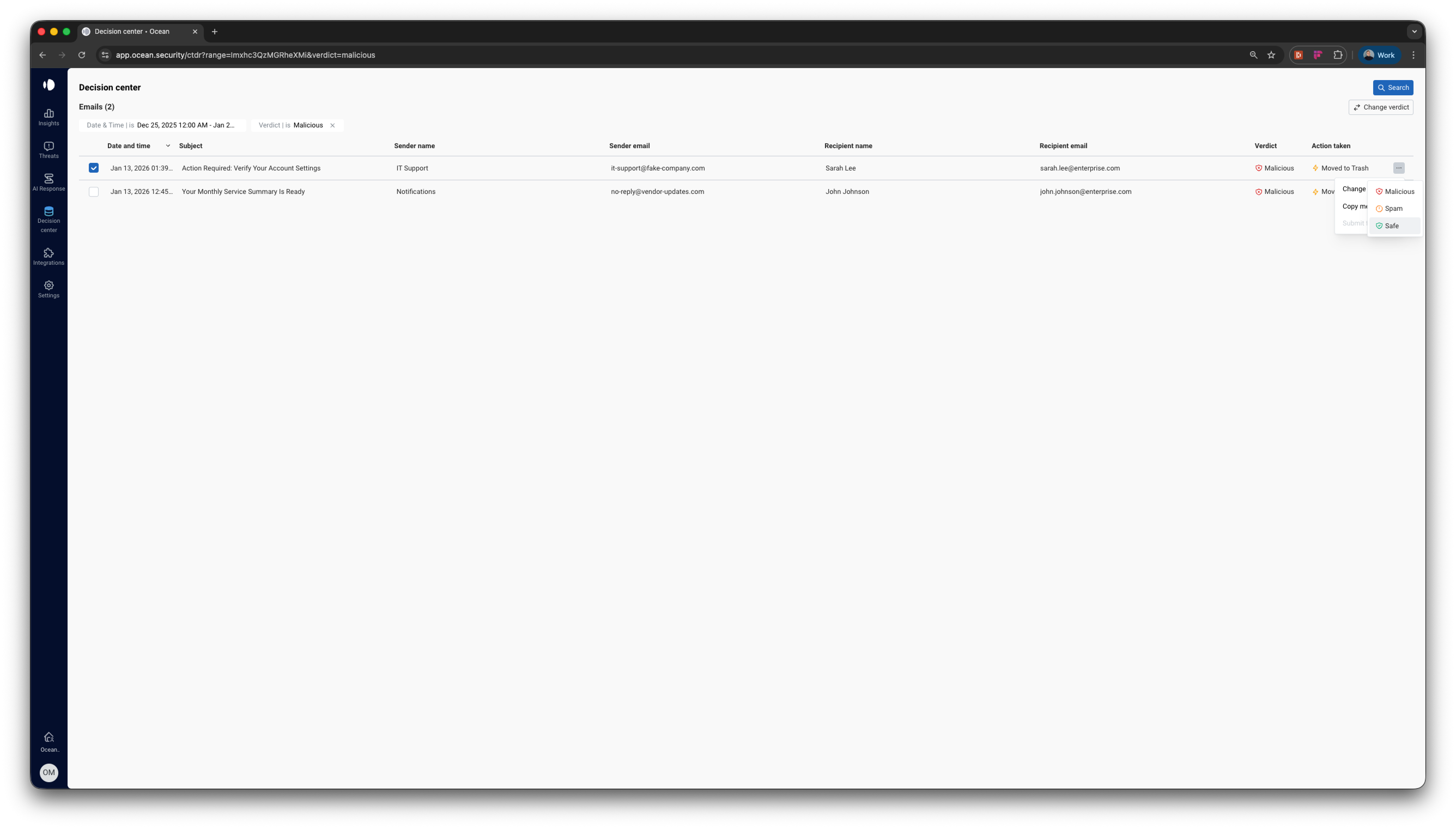
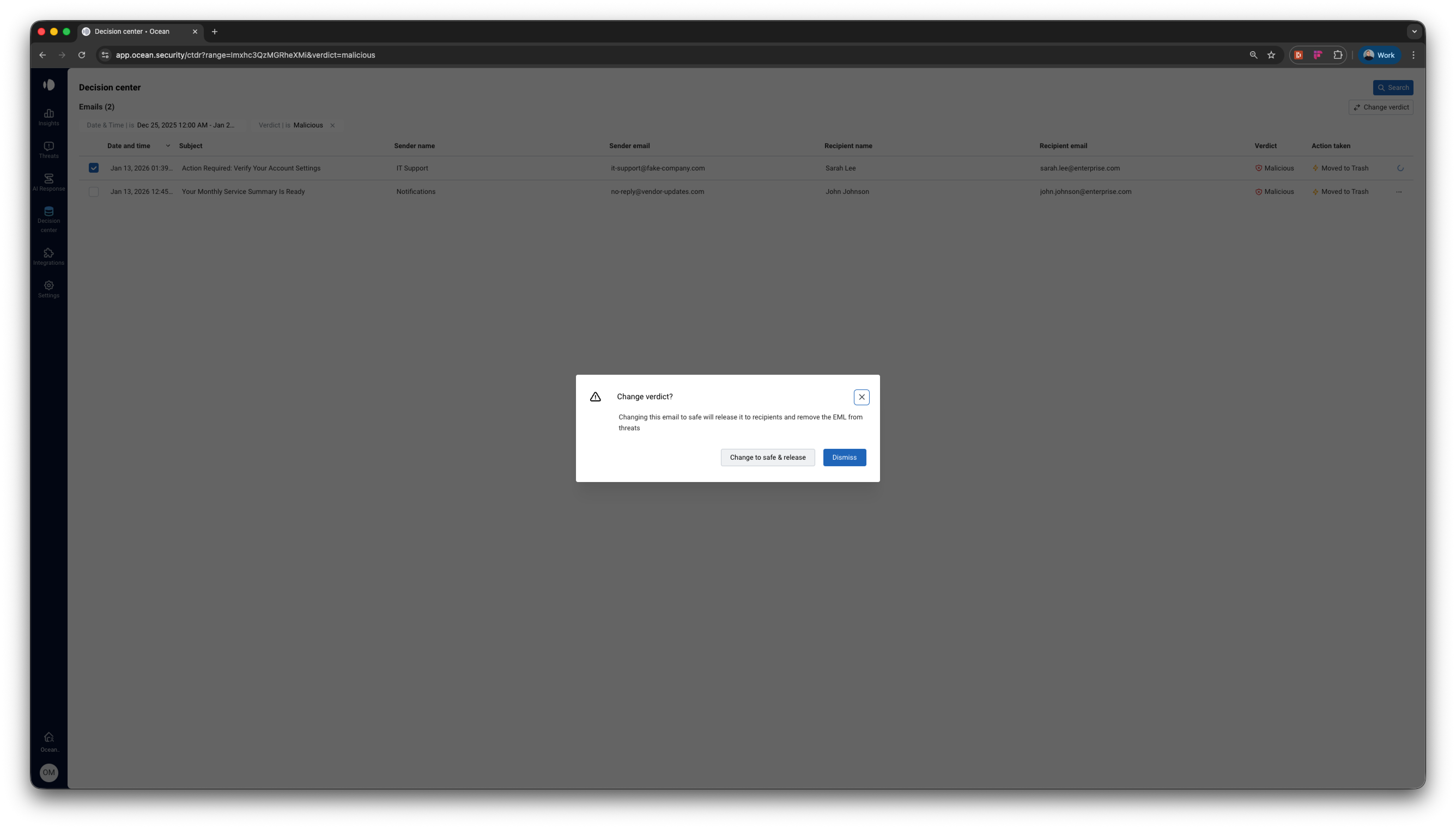
Verdict Options
The Decision Center allows you to change emails to any of these verdicts:| Verdict | Action Taken | Use Case |
|---|---|---|
| Safe | Restores email to inbox | False positive - email is legitimate |
| Spam | Moves email to spam folder | Unwanted but not malicious |
| Malicious | Keeps email blocked/quarantined | Confirmed threat |
Threat View vs Decision Center
| Feature | Threat View | Decision Center |
|---|---|---|
| Scope | Single threat | Single or batch emails |
| Verdict Options | Safe only | Safe, Spam, or Malicious |
| Best For | False positive threats | Granular email management |
| Search Capability | Browse threats list | Advanced search filters |
| Batch Actions | Not supported | Supported |
Permissions Required
To release blocked emails, you need one of the following roles:| Role | Threat View Release | Decision Center Release |
|---|---|---|
| Admin | Yes | Yes |
| Analyst | Yes | Yes |
| Analyst Read-Only | No | No |
Frequently Asked Questions
How quickly is the email restored?
How quickly is the email restored?
Email restoration typically happens within seconds. The recipient should see the email in their inbox shortly after you confirm the release.
Can I undo a release?
Can I undo a release?
Yes. If you accidentally release a malicious email, you can change its verdict back to Malicious using the Decision Center. This will re-quarantine or block the email.
Will releasing an email affect future detection?
Will releasing an email affect future detection?
Yes, your feedback helps Ocean’s AI learn. Marking emails as safe contributes to reducing false positives for similar emails in the future.
Can I release emails in bulk?
Can I release emails in bulk?
Yes. In the Threat View, releasing a threat releases all associated emails. In the Decision Center, you can select multiple emails and change their verdict in a single action.
Who can see that I released an email?
Who can see that I released an email?
Release actions are logged with your user ID and timestamp. Administrators and users with audit access can see who released emails and when.
What if the release fails for some emails?
What if the release fails for some emails?
Both methods support partial success. If some emails fail to release, the successful ones are still processed. Failed email IDs are reported so you can retry them individually.