
Limiting the Mailbox Scope
Create or Identify a Mail-Enabled Security Group
You’ll need a mail-enabled security group to define which mailboxes Ocean Security can Access. You can either: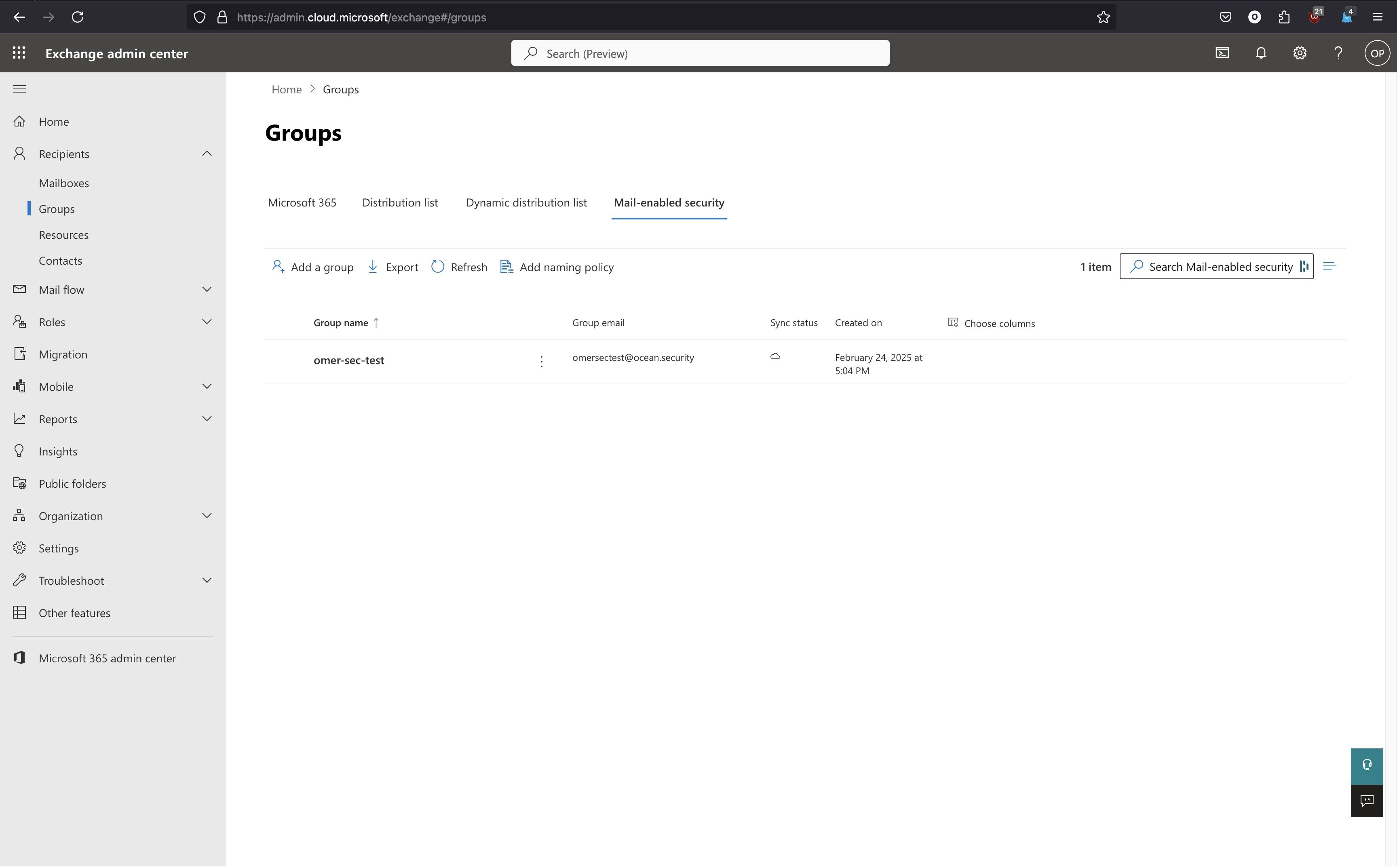

- Create a new mail-enabled security group in Exchange Online
- Use an existing mail-enabled security group

Action required
- Identify the email address of this group (you’ll use this later in the setup)
- Ensure that the communication check-box is turned off and approval checkbox is turned on for security and control
Restrict App Permissions Using PowerShell
To limit Ocean Security’s access to only the mailboxes within your selected security group, follow these PowerShell steps:
Prerequisites
- Ensure you have Exchange Online PowerShell installed and can connect (See Microsoft’s guide for setup details)
- Have Ocean’s App ID:
Command to Restrict Access
Run the following command, replacing the placeholderrs with your details (AppId has already been replaced with Ocean’s App ID):PowerShell
NoteAfter successfully running the command you’ll receive an identity (long id) - please save this and send it to Ocean Security.
Removing the Limited Mailbox Scope
If you no longer need to restrict Ocean Security’s access to a subset of mailboxes, follow the steps below to remove the application access policy.Locate the Existing Policy Identity
Run the following command to find the application access policy associated with Ocean Security (the App ID has already been replaced with Ocean’s App ID):You will get back a line similar to:The policy’s identity is the string after the last space on that line.
PowerShell
If
grep is not available (for example, on Windows PowerShell), save the full command output to a file and search inside that file for Ocean’s App ID.Remove the Policy
Run the following command, replacing the placeholder with the identity you saved in the previous step:A successful command returns no output. If the command fails, reach out to Ocean’s team.
PowerShell
Clean Up the Security Group (Optional)
If a mail-enabled security group was created solely for limiting Ocean’s scope, you can remove it from the Microsoft Entra admin center to keep your directory tidy.