
Overview
Ocean can operate in two permission modes: Read-Only for threat monitoring and reporting, or Read/Write for active threat protection. This guide explains how to upgrade from read-only to read/write mode, enabling Ocean to automatically remediate detected threats by moving or deleting malicious emails.A Google Workspace administrator account is required to grant the additional permissions.
What Changes with Read/Write Mode
Read-Only Mode
- Ocean analyzes and reports on threats
- No emails are moved, deleted, or labeled
- Full visibility into threat landscape
- Your team manually handles remediation
Read/Write Mode
- Automatic threat remediation based on configured policies
- Malicious emails can be moved to trash or quarantine
Remediation Actions
With read/write permissions, Ocean can perform the following actions based on your configured policies:| Action | Description |
|---|---|
| Move to Trash | Moves the email to the user’s Trash folder |
| Delete | Permanently removes the email from the user’s mailbox |
| Do Nothing | Logs the threat but takes no action (useful for monitoring) |
Remediation actions are configurable per threat type (malicious, spam) and can be customized to match your organization’s security policies.
Upgrade Steps
Access Integration Settings
In the Ocean portal, navigate to Settings → Integrations. Locate your Google Workspace integration and click Edit.
Select Read & Write Permissions
In the integration wizard, change the permission level from Read to Read & Write.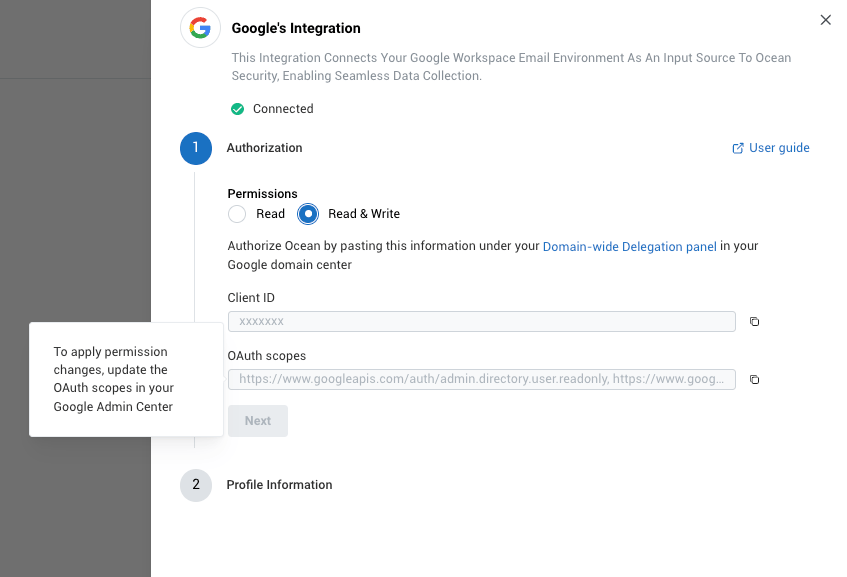
Update Domain-wide Delegation
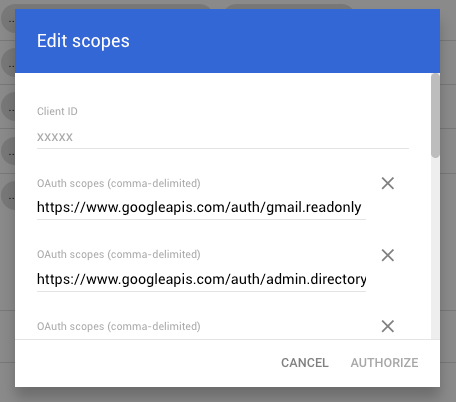
- Navigate to the Google Workspace Admin Console
- Go to Security → API Controls → Domain-wide Delegation
- Find Ocean’s Client ID in the list
- Click Edit and update the OAuth scopes with the new scopes provided in the wizard
Save Changes
Once the domain-wide delegation settings are updated, click Save to initiate the permission upgrade
Additional Permissions Required
When upgrading to Read/Write mode, Ocean requests the following additional Google Workspace OAuth scopes:Gmail Management
Modify Gmail messages and labels
Modify Gmail messages and labels
Scope:
https://www.googleapis.com/auth/gmail.modifyWhat it does: Enables the application to read, send, delete, and manage labels on emails in all mailboxes.Why it’s needed: Allows Ocean to move malicious emails to trash, apply warning labels, and manage email organization as part of automated remediation.Insert messages into Gmail
Insert messages into Gmail
Scope:
https://www.googleapis.com/auth/gmail.insertWhat it does: Enables the application to insert messages into users’ mailboxes.Why it’s needed: Allows Ocean to restore quarantined emails back to user mailboxes when released by administrators.Full Gmail access
Full Gmail access
Scope:
https://mail.google.com/What it does: Enables full access to Gmail, including reading, composing, sending, and permanently deleting emails.Why it’s needed: Provides comprehensive access for threat remediation actions, including the ability to permanently delete confirmed malicious emails when configured.Complete OAuth Scopes Summary
Below is the complete list of OAuth scopes for Read/Write mode (includes all read-only scopes plus the additional write scopes):Read Scopes (base permissions)
Additional Write Scopes
Configuring Remediation Policies
After upgrading to Read/Write mode, you can configure remediation policies in the Ocean portal:- Navigate to Settings → Policies
- Configure actions for each threat category:
- Malicious emails: Recommended action is Move to Quarantine
- Spam emails: Recommended action is Move to Trash
- Save your policy configuration
Frequently Asked Questions
Will existing emails be affected when I upgrade?
Will existing emails be affected when I upgrade?
No, the upgrade only affects how Ocean handles new threats going forward. Existing emails in user mailboxes are not modified during the upgrade process.
How do I update the domain-wide delegation?
How do I update the domain-wide delegation?
Navigate to the Google Workspace Admin Console, go to Security → API Controls → Domain-wide Delegation, find Ocean’s Client ID, and update the OAuth scopes with the new list from the Ocean integration wizard.
Can users retrieve deleted emails?
Can users retrieve deleted emails?
Emails moved to Trash can be restored by users within 30 days. Permanently deleted emails cannot be recovered. We recommend using Move to Trash as the default action to allow for recovery if needed.
What happens if Ocean is unavailable?
What happens if Ocean is unavailable?
How do I revoke the write permissions?
How do I revoke the write permissions?
You can downgrade back to read-only mode by updating the domain-wide delegation in Google Workspace Admin Console, removing the write scopes from Ocean’s Client ID entry.
Will Ocean interfere with existing email security tools?
Will Ocean interfere with existing email security tools?
Ocean is designed to complement existing email security infrastructure. It operates as an additional layer of protection and does not interfere with other security tools like Google’s built-in spam filters or third-party security solutions.