
Overview
This guide walks you through integrating Ocean into your Google Workspace environment in read-only mode. During the Proof of Concept (PoC), Ocean analyzes and reports on threats without taking active remediation actions, allowing your organization to evaluate our capabilities while retaining full operational control.Deployment Overview
Ocean’s email security platform integrates with Google Workspace via native APIs, requiring no rules and no changes to your email routing or infrastructure. During the PoC:- No emails are quarantined, blocked, or deleted
- Detected threats appear in the Ocean dashboard
- Security teams have full control over review and handling
Integration Steps
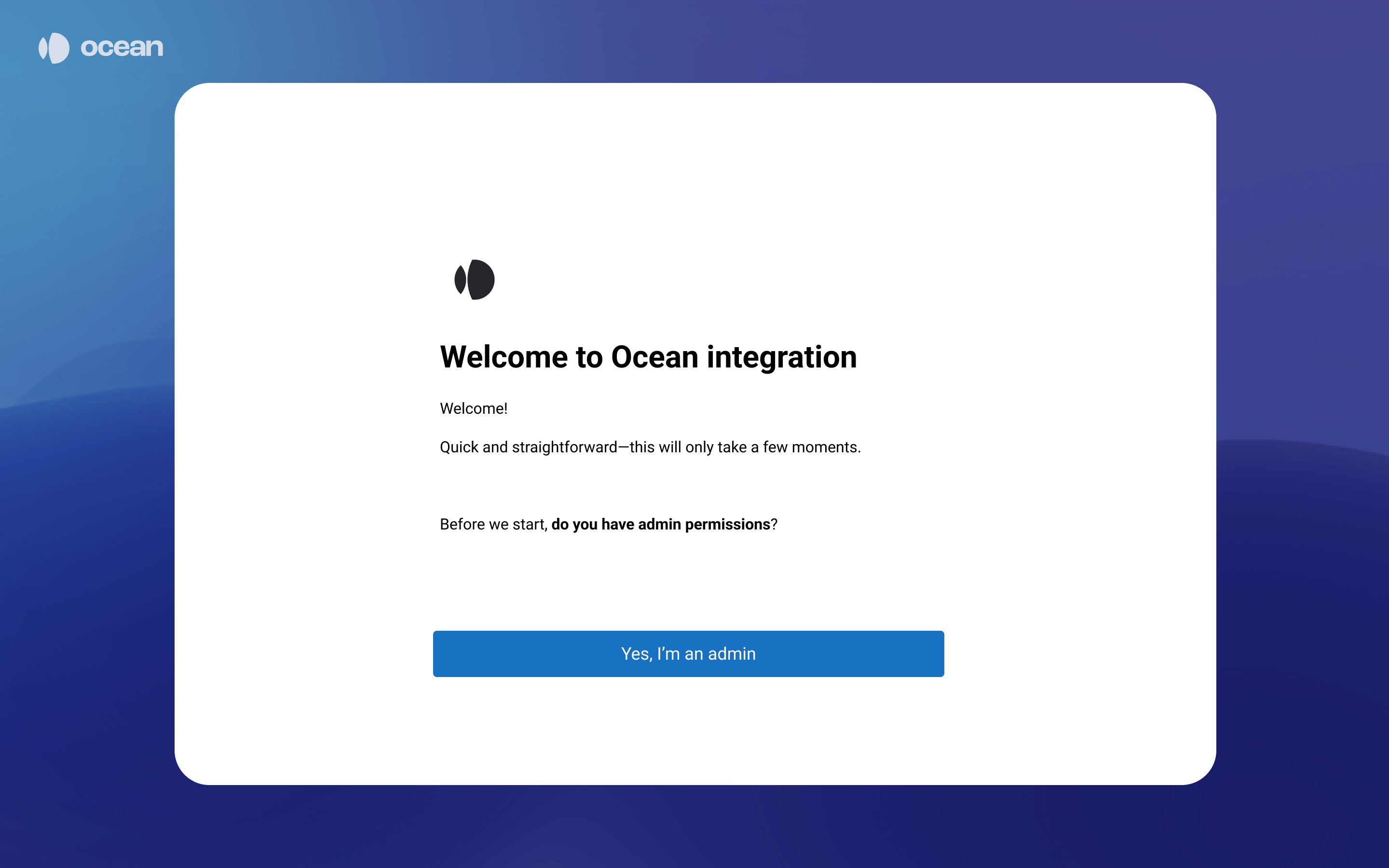
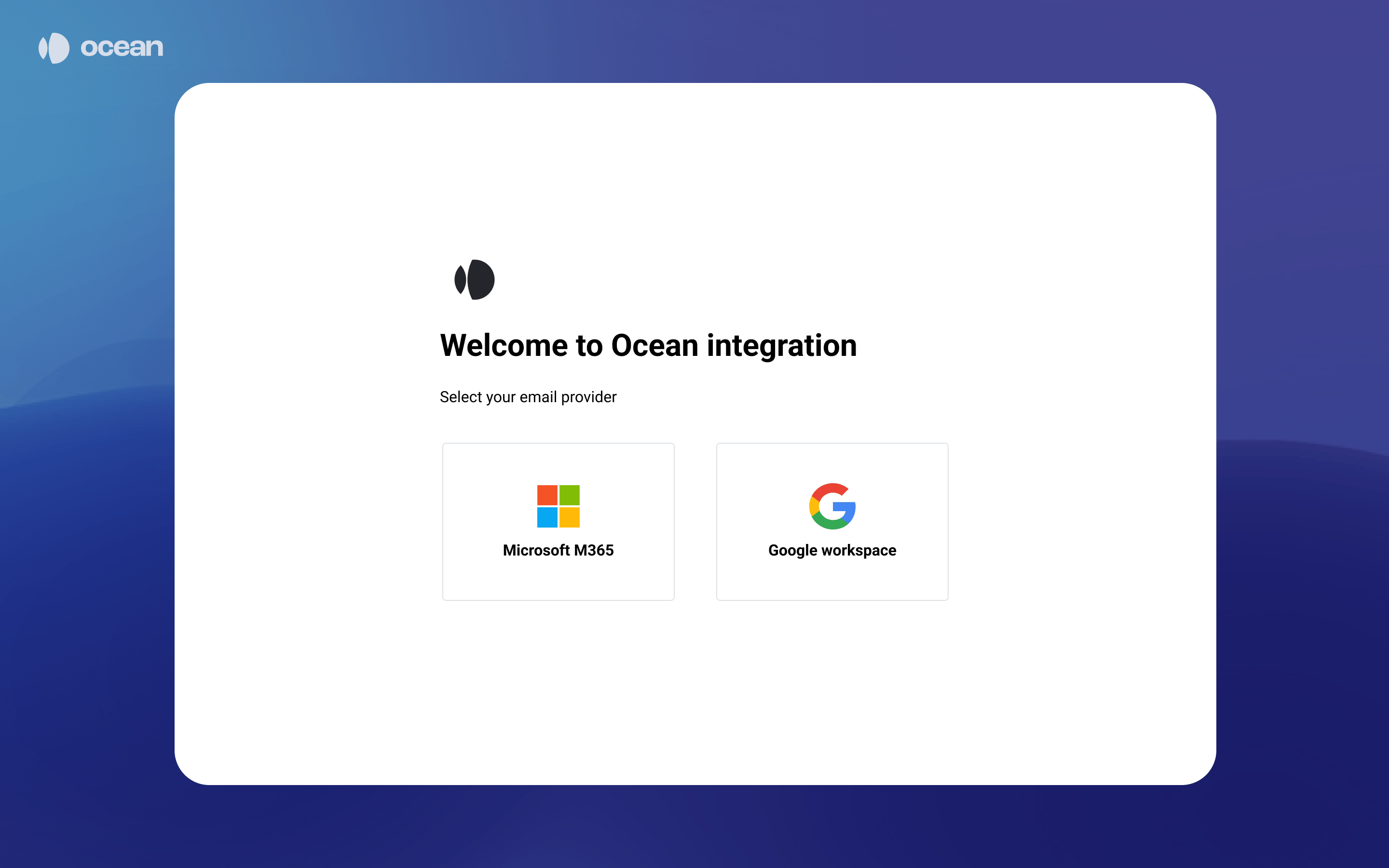
Before starting, Ocean’s team will provide you with a link to the integration wizard.Confirm Admin Permissions
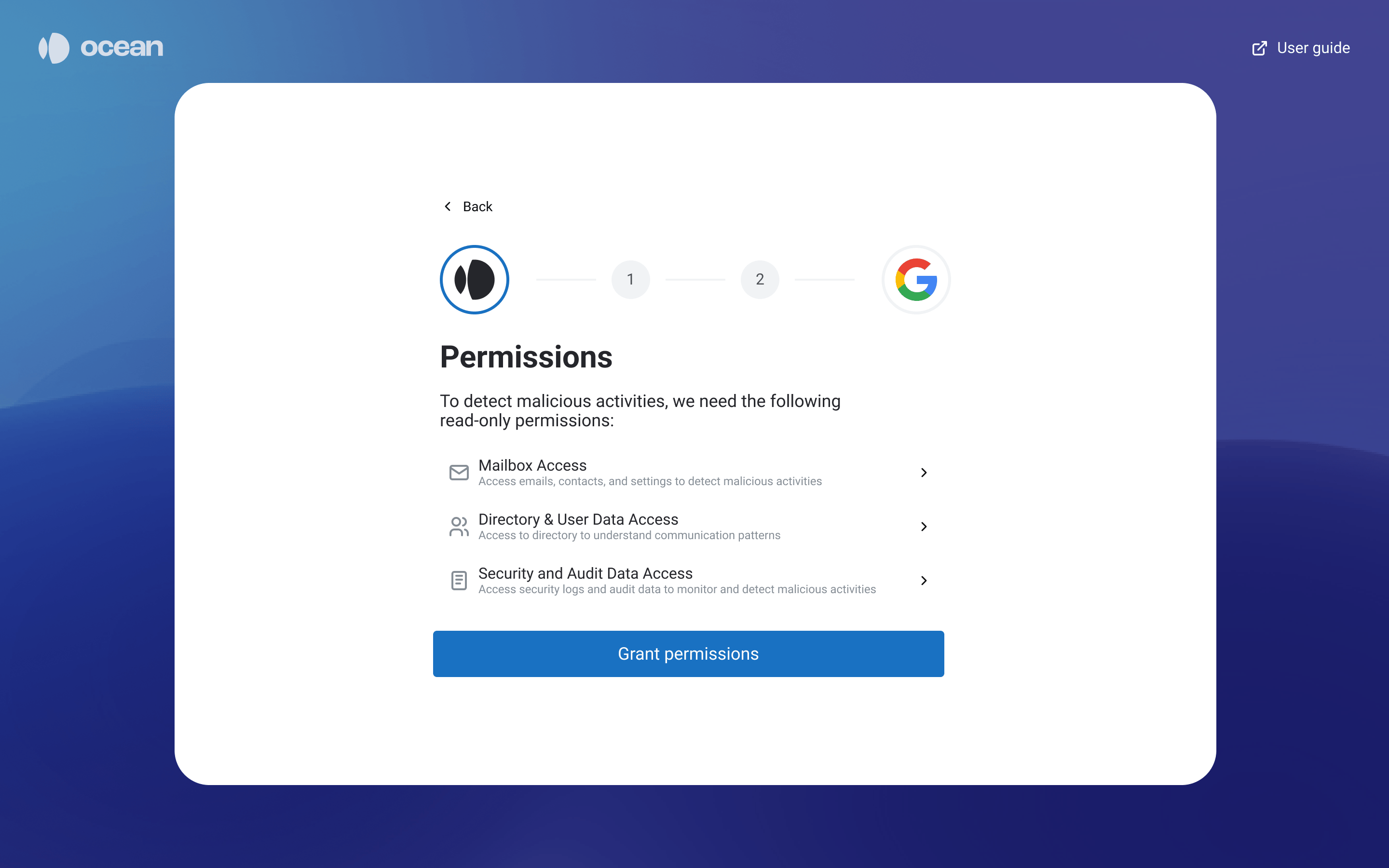
Review Permissions
Configure Domain-wide Delegation
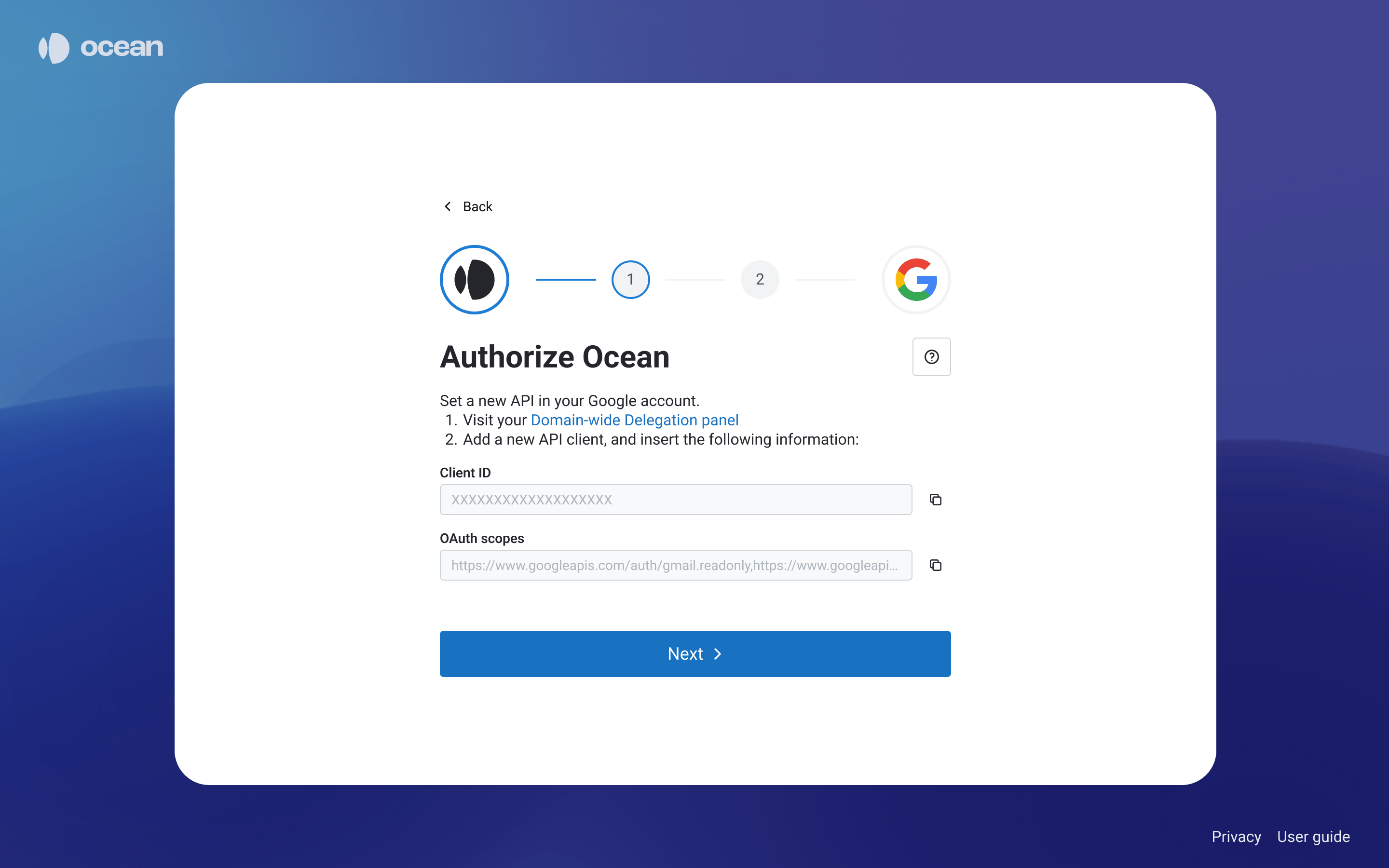
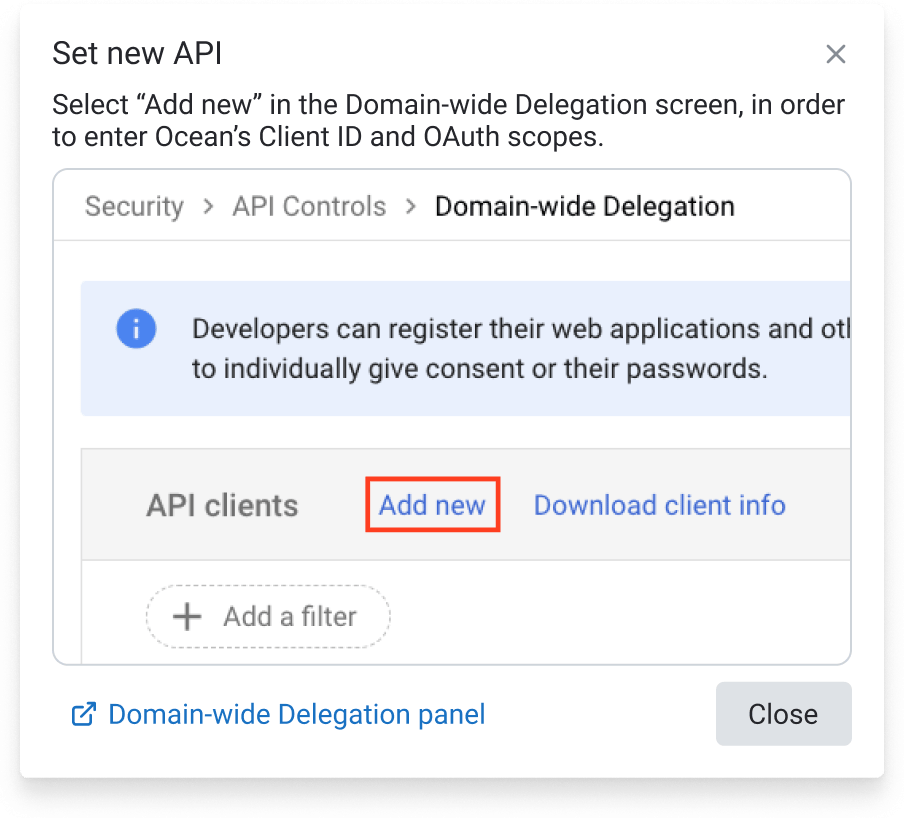
Enter Ocean's Information
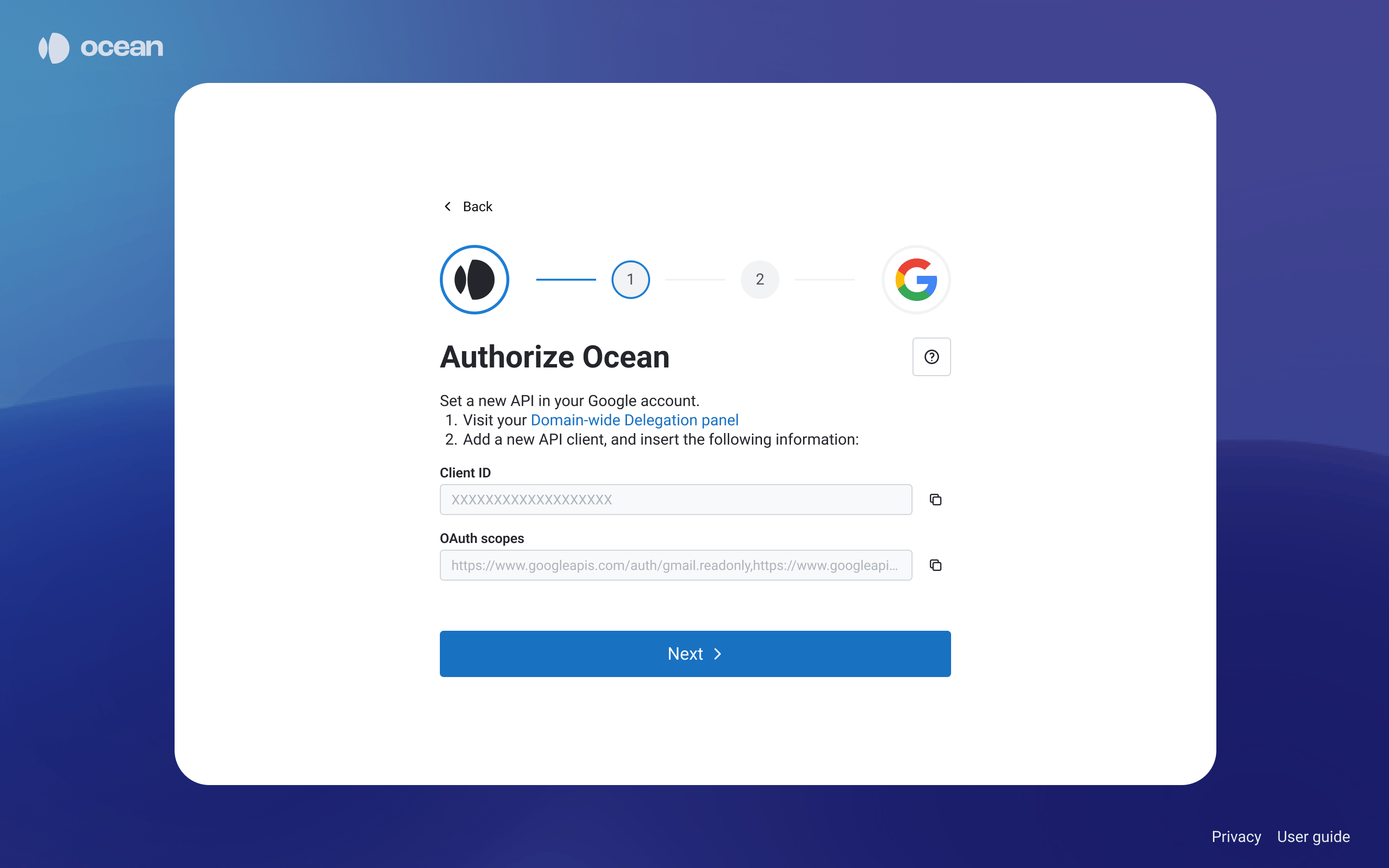
- Copy the Client ID from the integration wizard and paste it in the Google form under “Client ID”
- Copy the list of OAuth scopes from the integration wizard and paste it into the Google form under “OAuth scopes (comma-delimited)”
Enter Google Workspace Information
- Click on the Profile Info Page link in the wizard
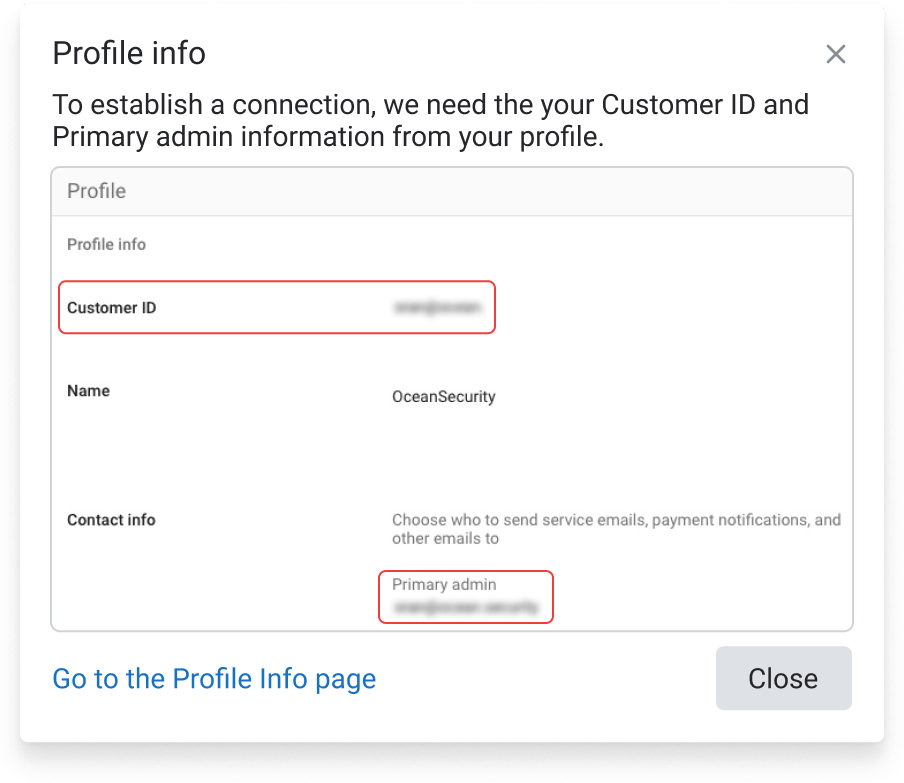
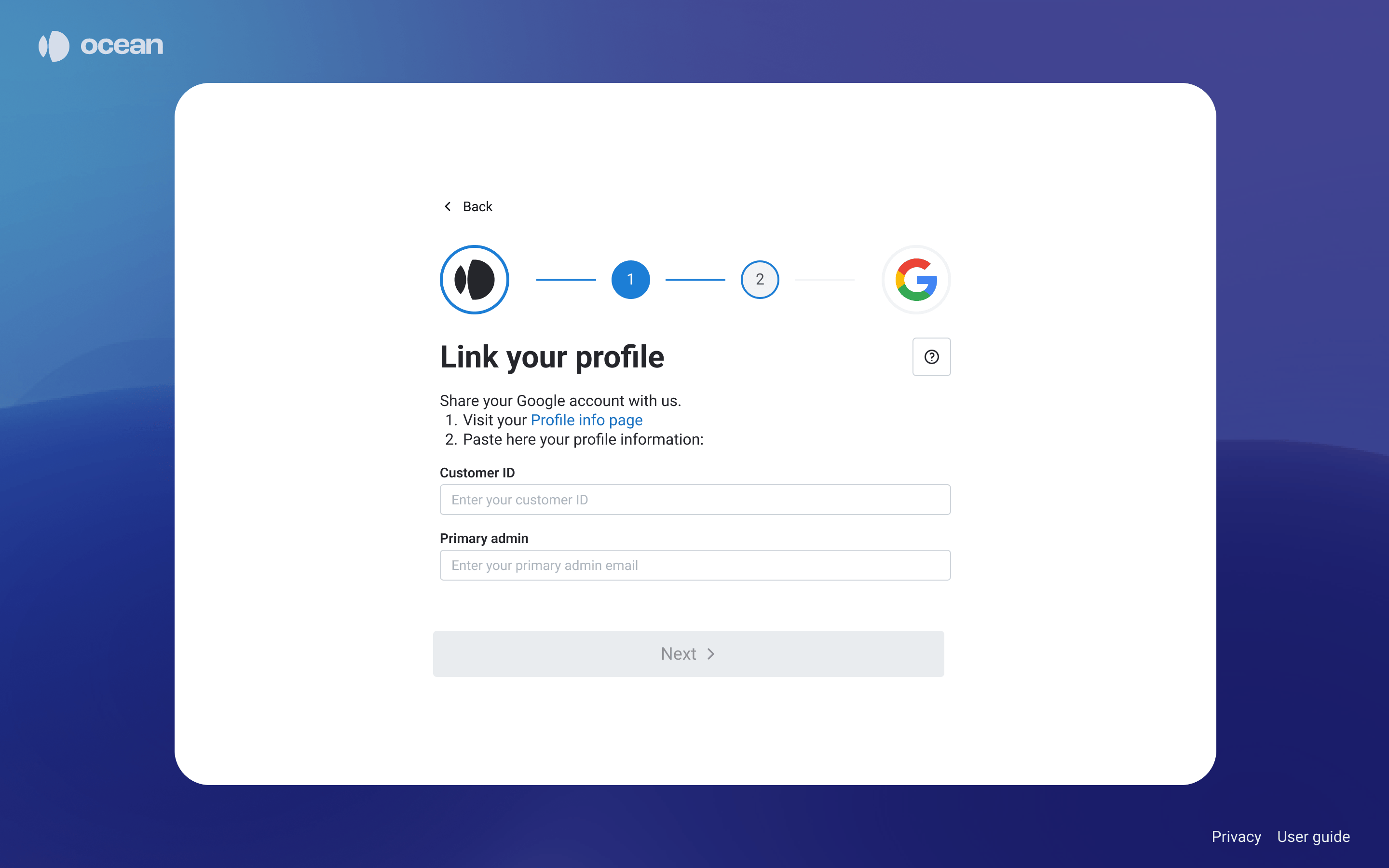
- Copy the Customer ID value and paste it in the relevant field
- Copy the Primary admin email value and paste it in the relevant field
Permissions Reference
Ocean requires the following read-only Google Workspace permissions during the Proof of Concept (PoC). These permissions allow our AI to build context, understand communication patterns, and accurately identify potential threats.Mailbox Access
Read mail in all mailboxes
Read mail in all mailboxes
gmail.readonlyPurpose: Allows the application to read emails in all mailboxes without requiring a signed-in user.Why it’s needed: Ocean analyzes email content to detect phishing attempts, financial fraud, and impersonation attacks. This permission enables comprehensive threat detection across your organization.Access mailbox metadata
Access mailbox metadata
gmail.metadataPurpose: Enables the application to access users’ mailbox settings and filters without needing a signed-in user.Why it’s needed: Understanding mailbox configuration helps Ocean identify anomalies and potential security misconfigurations that could be exploited by attackers.Read contacts for all mailboxes
Read contacts for all mailboxes
contacts.readonlyPurpose: Allows the application to read all contacts in users’ mailboxes without requiring them to be signed in.Why it’s needed: Contact information helps Ocean’s AI understand legitimate communication patterns and detect impersonation attempts where attackers pose as known contacts.Directory Access
Read a list of all users
Read a list of all users
admin.directory.user.readonlyadmin.directory.orgunit.readonlyadmin.directory.group.readonly
Read a list of domains
Read a list of domains
admin.directory.domain.readonlyadmin.directory.customer.readonly
Activity and Reporting
Read login activity
Read login activity
admin.reports.audit.readonlyPurpose: Allows the application to access activity and usage reports for Google Workspace services, including user sign-in activities.Why it’s needed: Login activity data helps Ocean correlate email threats with potential account compromise indicators, such as logins from unusual locations or devices.Read usage activity
Read usage activity
admin.reports.usage.readonlyPurpose: Allows the application to access activity and usage reports for Google Workspace services.Why it’s needed: Usage patterns help establish behavioral baselines, making it easier to detect anomalous activity that could indicate a compromised account or insider threat.Security and Alerts
Read Conditional Access policies
Read Conditional Access policies
Policy.Read.AllPurpose: Provides visibility into tenant-level access controls.Why it’s needed: Understanding your existing security policies allows Ocean’s AI to evaluate policy context and determine whether threats are attempting to bypass your safeguards.Read alerts for Google Workspace
Read alerts for Google Workspace
apps.alertsPurpose: Allows the application to read alerts generated by Google Workspace, such as messages reported as phishing by users.Why it’s needed: Integrating with Google’s native alerting system allows Ocean to correlate its detections with user-reported phishing attempts and other Google-generated security alerts for comprehensive threat visibility.OAuth Scopes Summary
Below is the complete list of OAuth scopes required for the integration:Frequently Asked Questions
Do I need to change DNS records, route email flow, or any other settings?
Do I need to change DNS records, route email flow, or any other settings?
Will Ocean interfere with delivery to employees?
Will Ocean interfere with delivery to employees?
Will business operations be affected if Ocean services are unavailable or removed?
Will business operations be affected if Ocean services are unavailable or removed?
Will Ocean delete, move, or change emails?
Will Ocean delete, move, or change emails?
Will Ocean impact other email security systems?
Will Ocean impact other email security systems?
How do I revoke Ocean's access?
How do I revoke Ocean's access?
Is any configuration or setup required after the integration?
Is any configuration or setup required after the integration?
Is any maintenance or support required from the IT team?
Is any maintenance or support required from the IT team?